
Daniel shoots weddings in Vancouver, and his highlight reels are the reason his calendar fills up by February. Last spring he delivered a five-minute film to a couple, watched it with them on their laptop, and felt proud until the vows. Forty seconds in, the groom’s lips and voice were still married. By the third minute, they had quietly divorced. The voice lagged a half-second behind the mouth, just enough to feel wrong in a way nobody could unsee. The couple laughed politely. Daniel went home and watched the whole thing three times, hoping he had imagined it. He had not.
That half-second is the uncanny valley of video. A full second of delay reads as a technical glitch and gets forgiven. A half-second reads as wrongness, and wrongness makes viewers uneasy without knowing why. This is why audio out of sync is such a cruel problem: the worse it gets, the more obvious the cause becomes, but the mild cases, the ones most people actually have, sit right in the zone of maximum discomfort.
Daniel’s drift was mild for two minutes and maddening by minute three. If your audio-out-of-sync issue is mild, do not wait for it to become obvious. Mild is the hardest version to diagnose later, because by then you have forgotten what you changed.
His first theory was the export. He re-exported with different settings, twice, and the drift survived both. His second theory was his computer, so he played the original files on his phone, where everything was perfectly in sync, which only deepened the mystery. The footage was fine. The export was fine. The problem lived in the middle, in the edit itself, in something his phone had been doing silently for years that his editing software had never agreed to. It took him a weekend to find it, and the fix took eleven minutes.
If you have ever watched your own video slide out of sync, you know the particular helplessness of it. The sound is right. The picture is right. They just refuse to stay together. This article is the full map: the two completely different sync problems people mix up, why phone footage drifts in editors, the playback traps that fake a sync problem where none exists, and the fix that actually holds.
By the end, you will be able to diagnose any audio out-of-sync situation from its symptoms in under a minute, which is a genuine superpower in a world where everyone just re-exports and hopes.
One more thing before the map unfolds. Everything in this article was learned the hard way by working editors, and I have compressed years of forum threads into one reading. You will not need any new software beyond one free download, and you will not need to understand codecs deeply. You need the diagnostic habit and the conversion habit, and both take less time to learn than one failed re-export. When audio goes out of sync on your next project, and it will, you will know exactly which box you are in and exactly what to do. That is the whole promise.
First, work out which sync problem you have
Almost everyone skips this step, and it is the step that decides everything. There are two fundamentally different sync problems, and they have different causes and different fixes. The first is offset: the audio is out by the same amount from the first second to the last.
Lips move, voice follows a beat later, consistently, through the whole video. The second is drift: the audio starts in sync and gradually slides away, a little more with every minute. Fine at the start, a mess by the end. Daniel had drift. Most people who think they have drift actually have offset, and the fixes are not interchangeable.
Let me make the difference visceral, because it is the hinge of the article. Offset is a photograph shifted in its frame: the whole picture moved by the same amount. Drift is a rug being pulled: the further you go, the further off it gets. An offset of 200 milliseconds is annoying at second one and equally annoying at minute ten.
A drift of nothing at second one becomes unwatchable by minute ten. When someone tells me their audio is out of sync, my first question is always the same: does it get worse? The answer sorts every case I have ever seen into the right pile.
There is a second split that matters just as much: where does it happen? Sometimes the file itself is broken, the sync is wrong in the exported video no matter where you play it. Sometimes the file is fine, and the playback is lying to you. Bluetooth headphones add a delay.
A smart TV processes the picture a fraction slower than the sound. A streaming app glitches on one episode. If your audio-out-of-sync complaint only appears on one device or one app, the video is probably innocent. Test the same file on wired headphones and a different player before you touch the edit. Half of all sync panic ends right there.
This playback-first rule deserves emphasis because it reverses everyone’s instinct. The instinct is to open the editor. The correct move is to close it and play the file on the dumbest device you own. I have seen people re-edit entire projects over audio out of sync and only existed in their Bluetooth earbuds. The file was perfect the whole time. Nobody clapped for the re-edit because there was nothing to fix. Always interrogate the playback chain before you touch a timeline. It takes ninety seconds, and it has the best return on investment of anything in this article.
Here is the sixty-second diagnosis you can run on any problem clip. Play it and watch the beginning, then skip to the end. If the delay is identical at both points, you have offset, which is a latency or alignment issue. If the end is worse than the beginning, you have drift, which is a timing-rate issue.
Then play it somewhere else entirely, different device, no Bluetooth. If the problem vanishes, it was playback all along. Write down which of the four boxes you landed in before you change a single setting, because every fix below is aimed at one specific box, and the wrong fix for the right symptom wastes an afternoon.
Let me give you the one-line version to carry around: offset is a shift, drift is a slide, playback is a lie, file is the truth. When you spot audio out of sync, ask which of the four. A shift gets one nudge. A slide gets a conversion. A lie gets a different device.
The truth gets the checklist. I have watched this four-way sort resolve arguments in editing forums in a single reply, because most arguments are two people describing different boxes. Name your box first, and the thread goes quiet. Every case of audio out of sync I have ever fixed has been submitted to this sort, and so will yours.
This diagnostic habit is what separates people who fix sync issues from people who collect them. The fixer asks what kind. The collector re-exports with random settings and hopes the computer forgives them. Be the fixer. The rest of this article is organised around the diagnosis, so keep your answer handy: offset or drift, file or playback. Daniel’s answer was drift, in the file, which pointed straight at the most common cause in modern video, and the one nobody warns you about when you buy a phone.
Keep that four-box grid in your head as we go: offset or drift, file or playback. Every section below assumes you know your box, because advice without a diagnosis is just noise. The VFR section is for drift-in-the-file. The playback section is for everything that vanishes on wired headphones. The warning is for people treating drift like offset. The checklist is the whole system in order. If at any point you feel lost, go back to the sixty-second diagnosis and re-sort yourself. The map only works if you know where you are standing.
Why phone footage drifts
Your phone is lying to your editing software, politely and for good reasons. To save battery and storage, most phones record what is called variable frame rate video, VFR. Instead of capturing exactly 30 frames every second, the phone captures 30 when the scene is busy and fewer when nothing is moving, stretching and squeezing time as it goes.
Played back on the phone, this is invisible, because the phone knows its own timing. But editing software was built on the assumption of constant frame rate, CFR, the same number of frames every second, and it reads the phone’s stretchy timeline as if it were rigid.
The engineering trade-off is worth appreciating, because it stops you resenting your phone. Constant frame rate is wasteful: it records 30 identical frames of an empty room every second, burning battery and storage for nothing. Variable frame rate is clever: it records what changes and rests when nothing does. For watching, VFR is a pure win.
The trouble starts only when editing software, built in the constant-frame-rate era, reads the clever file literally. Your phone made the right choice for a phone. The editor made the right choice for an editor. When audio falls out of sync between them, the fix is translation, not blame, and HandBrake is the translator. HandBrake’s official frame-rate documentation has the full technical explanation of variable, constant, and peak frame rates if you want it.
The audio, meanwhile, keeps perfect time. Your phone records sound at a constant sample rate, 48,000 samples every second, no stretching, no squeezing. So the edit has two clocks that disagree: a video clock that wobbles and an audio clock that does not. At the start, they line up.
With every minute, the wobble accumulates, and the audio slides away from the picture. This is why Daniel’s vows were fine at forty seconds and divorced by minute three. It is also why the footage looked perfect on his phone. The drift did not exist until the editor misread the timing. Nothing was broken. Two systems were just keeping time differently.
It is worth sitting with how strange this is. The phone is not broken. The editor is not broken. The audio is not broken. Three healthy systems produce a broken result because they disagree about what time it is, which is the kind of problem that makes people re-export four times and blame Mercury retrograde. Once you see it, you cannot unsee it, and every future case of audio drifting out of sync in your edits will get the same first question: was this shot on a phone? If yes, convert first, ask questions later. The conversion is cheap. The weekend is not.
Screen recordings do the same thing, often worse. Game captures, tutorial recordings, and video calls all vary their frame rate to cope with performance dips, dropping frames when the computer stutters. Import that into an editor and the drift can be dramatic, seconds off by the end of a long recording. If you have ever wondered why your screen-recorded tutorial slowly falls apart while your camera footage stays clean, this is the entire explanation. Same disease, more aggressive strain.
Screen recordings deserve special attention because they combine every drift cause at once. The frame rate varies with CPU load, the audio comes from a different device with its own clock, and the recording runs long, giving drift plenty of runway.
If you record tutorials, set your recorder to constant frame rate before you press record: in OBS, it is one setting in the output panel. Prevention beats conversion every time. But if the recording already exists and shows audio out of sync, the same HandBrake conversion rescues it. Old recordings are not doomed. They just need their clocks repaired like everything else.
There is a cousin of this problem worth knowing about: sample rate mismatch. If your audio was recorded at 48kHz and your project plays it at 44.1kHz, or the reverse, the audio plays at slightly the wrong speed and drifts against the picture. It is rarer than VFR drift, but it produces the identical symptom, which is why it survives in the wild.
When you have ruled out frame rates and the drift persists, check that every piece of audio in the project agrees on its sample rate. One rogue 44.1kHz clip in a 48kHz project will drift exactly like VFR footage, and it will mock you while doing it.
Sample rate mismatch is the doppelganger of VFR drift, same symptom, different culprit, and it loves to ambush people who just fixed their frame rates. The scenario: you record voiceover on a USB mic at 44.1kHz, drop it into a 48kHz video project, and everything slowly slides. The fix is boring and total: pick one sample rate for the project, usually 48kHz for video work, and convert every clip to match before you edit. Most editors show the rate in the clip properties. Check it the way you would check the expiry date on milk: quickly, routinely, without trust.
The playback traps
Now the other half of the map, because a large share of audio out-of-sync complaints are not in the file at all. The biggest trap is Bluetooth. Wireless headphones and speakers add latency, the time the signal spends travelling through the air and being decoded, and that latency lands squarely on the audio while the picture plays on time.
The result looks exactly like an offset problem: lips move, voice follows late, consistently. Switch to wired headphones, and it vanishes. If your sync issue only exists on Bluetooth, there is nothing wrong with your video, your export, or your editing. There is something gloriously normal about wireless audio.
Bluetooth latency also explains a whole genre of confused forum posts: my export is out of sync but only when I watch on my speaker. The export is fine. The speaker is late. This is worth internalising because wireless audio is only getting more common, which means more phantom sync problems, which means more wasted re-exports. Make the wired test your reflex. Earbuds out, cable in, play again. If the audio out-of-sync complaint disappears with the cable, you have your answer, and the answer cost you nothing.
Streaming adds its own traps. Apps like Crunchyroll, Hulu, and Peacock have all had well-documented stretches where audio drifted on specific devices or episodes, and the forums fill with people reinstalling apps and resetting routers for a problem that lives on the service’s side. The tell is scope: if one show drifts and everything else is fine, or if the drift appears mid-episode and then corrects itself, you are looking at a playback or delivery issue, not a broken file. Check the service’s status, try a different device, and resist the urge to re-encode your own library in response to someone else’s bug.
Streaming sync issues have one more tell worth knowing: they move. A file problem is deterministic; it drifts the same way every time you play it. A delivery problem is moody; it appears on Tuesday’s episode, vanishes on Wednesday’s, and follows no pattern you can reproduce. If your audio out-of-sync complaint cannot be reproduced on demand, stop troubleshooting your files. You cannot fix randomness with settings. Check the service, check your connection, try tomorrow. Some sync problems are weather, not climate, and the correct response to weather is patience, not re-encoding.
Television sets are the third trap, and the sneakiest, because the delay is built into the hardware. Many TVs process the picture, motion smoothing, upscaling, noise reduction, which takes a few dozen milliseconds, while the audio sails through untouched. The lips lag the voice by a beat on everything you watch.
Most modern TVs have an audio delay or lip-sync setting buried in the sound menu precisely because of this, and soundbars add their own. If every source on your TV is slightly off by the same amount, the TV is the patient, not the video. One menu adjustment fixes all of it at once, which is a much better afternoon than re-editing anything.
TV processing delay has a cousin worth knowing: the soundbar handshake. When audio travels to a soundbar over ARC or optical while the TV processes the picture, the two paths take different amounts of time, and the gap lands wherever the slower path ends. Most setups let you dial in a delay to compensate, usually in the TV’s sound menu under lip-sync or AV sync.
Set it once with a talking-head clip you trust, and every source benefits. If your audio out-of-sync issue affects the TV and nothing else, the television is not broken. It is just two devices keeping time differently, exactly like the phone and the editor.
Do not fix drift by slicing your audio into pieces and nudging each piece back into place on the timeline. It feels productive, and it is a losing battle. Drift is progressive, so a nudge that fixes minute three breaks minute five, and you will spend hours chasing a moving target with scissors. The only durable fix for drift is to repair the timing underneath, which means converting the footage before you edit, not compensating after. Nudging is for offset, a single constant shift applied once. If your fix needs more than one nudge, you are treating drift as offset, and the timeline will punish you for it.
Diagnose it from the symptom
With the two splits in hand, offset versus drift and file versus playback, most sync problems identify themselves. Find your symptom in the table below, and it will point to the cause and the section that fixes it. This is the minute-long version of the diagnosis; the sections around it are the full story.
One habit makes this table ten times more useful: test on the simplest setup you own. Wired headphones, a plain video player, no Bluetooth, no smart TV processing. That strips away every playback trap at once and tells you whether the file itself is guilty. If the problem survives the simple setup, work the table. If it vanishes, you just saved yourself an editing session.
The simplest-setup test deserves a permanent place in your troubleshooting, because playback lies in such creative ways. I once spent an hour on audio out of sync that turned out to be a TV’s motion smoothing plus a soundbar, a compound lie from two devices. The file was perfect.
The wired-headphones test would have told me in ninety seconds. Now it is my first move for every sync complaint, before I open any editor, before I touch any setting. Make it yours too: dumbest device, wired connection, plain player. If the audio out of sync survives that trio, the file is guilty, and the table will convict it.
| Symptom | What it means | Where to look |
|---|---|---|
| Delay is identical from start to end | Offset: a fixed latency or alignment issue | Playback devices first, then a single audio nudge in the editor |
| Sync worsens the longer the video plays | Drift: a timing-rate mismatch | Variable frame rate footage; convert to CFR before editing |
| Fine on the phone, drifts in the editor | VFR misread by the editing software | HandBrake constant frame rate conversion, then re-import |
| Only wrong on Bluetooth headphones | Wireless audio latency, not a video problem | Test wired; if it vanishes, the file is innocent |
| Only wrong on one streaming app or episode | Playback or delivery issue on the service side | Different device, check service status; do not re-encode |
| Drifts after export but was fine in the editor | Export or sample-rate mismatch | Match sample rates; check export frame rate settings |
Notice how the table never prescribes re-exporting with random settings. That is deliberate. Random re-exports are how a twenty-minute fix becomes a lost weekend. Each symptom has one primary suspect, and the table sends you to it directly. Daniel’s symptom was row two, worsening over time, which sent him to variable frame rate, which sent him to the fix that took eleven minutes. Your symptom will do the same, provided you diagnosed honestly instead of hoping.
The table has one more virtue: it makes you state the symptom out loud, which is embarrassingly effective. Saying the delay is identical from start to end forces you to actually check the end, which most people never do. Saying it only happens on Bluetooth forces the wired test. Diagnosis by declaration. The number of sync problems that survive being described precisely is remarkably small, because precision is the enemy of vague panic. When audio goes out of sync, describe it like a witness, not a victim: what, where, when, and on what device.
There is a reason witness-style description works so well on sync problems specifically. Vague complaints invite vague fixes, and vague fixes are how you end up with four re-exports and no diagnosis. Precise complaints invite precise fixes. The table rewards precision with a direct pointer to the cause. Most people skip this because describing feels slower than doing, but doing without describing is what the lost weekend is made of.
When audio out of sync strikes, spend two minutes as a witness. State the delay, state whether it grows, state the device. A precise report of audio out of sync gets a precise fix. The two minutes will save you two hours, which is a trade worth making every single time.
How Daniel fixed his wedding video
Daniel’s diagnosis was drift in the file, worsening over time, which is the textbook signature of variable frame rate. His phone had recorded the ceremony at whatever frame rate the moment allowed, and his editor had read it as constant. The fix, which he found after a weekend of wrong theories, was to repair the timing before touching the edit. He downloaded HandBrake, the free open-source transcoder, loaded the ceremony footage, and changed one setting that mattered more than all his re-exports combined.
In HandBrake’s Video tab, under Framerate, he switched from variable to Constant Framerate, leaving the rate at Same as Source, so the conversion stayed like-for-like. Eleven minutes later, he had a new file with honest, rigid timing, and when he replaced the footage in his project, the vows stayed married from the first second to the last. He did not nudge a single audio clip. He did not change the edit at all. The timeline was fine. The footage’s clock had been the liar, and now it told the truth.
Notice what Daniel did not do, because the not-doing is the skill. He did not nudge the audio. He did not slice the timeline. He did not re-export with hopeful settings. He repaired the clock underneath and let the edit stand, which is the fundamental insight of this whole article: drift is a timing problem, and timing problems are fixed in the footage, not on the timeline.
Every hour ever spent nudging drifting audio was an hour spent compensating for a clock nobody repaired. Fix the clock and the timeline takes care of itself. His audio stayed out of sync for a weekend; it has stayed in sync ever since, because the fix addressed the cause instead of the symptom.
Two details are worth stealing. First, he converted before re-editing, not after. Converting the exported master would have baked the drift in permanently, because you cannot un-drift audio that was cut against a wobbly clock. The conversion has to happen to the source footage, before the edit, so every cut lands on honest timing. Second, he checked the result on the timeline before re-exporting, scrubbing to the end of the vows to confirm the sync held. Test at the end, where drift shows. Testing at the beginning proves nothing, because drift always looks fine at the beginning. That is its whole trick.
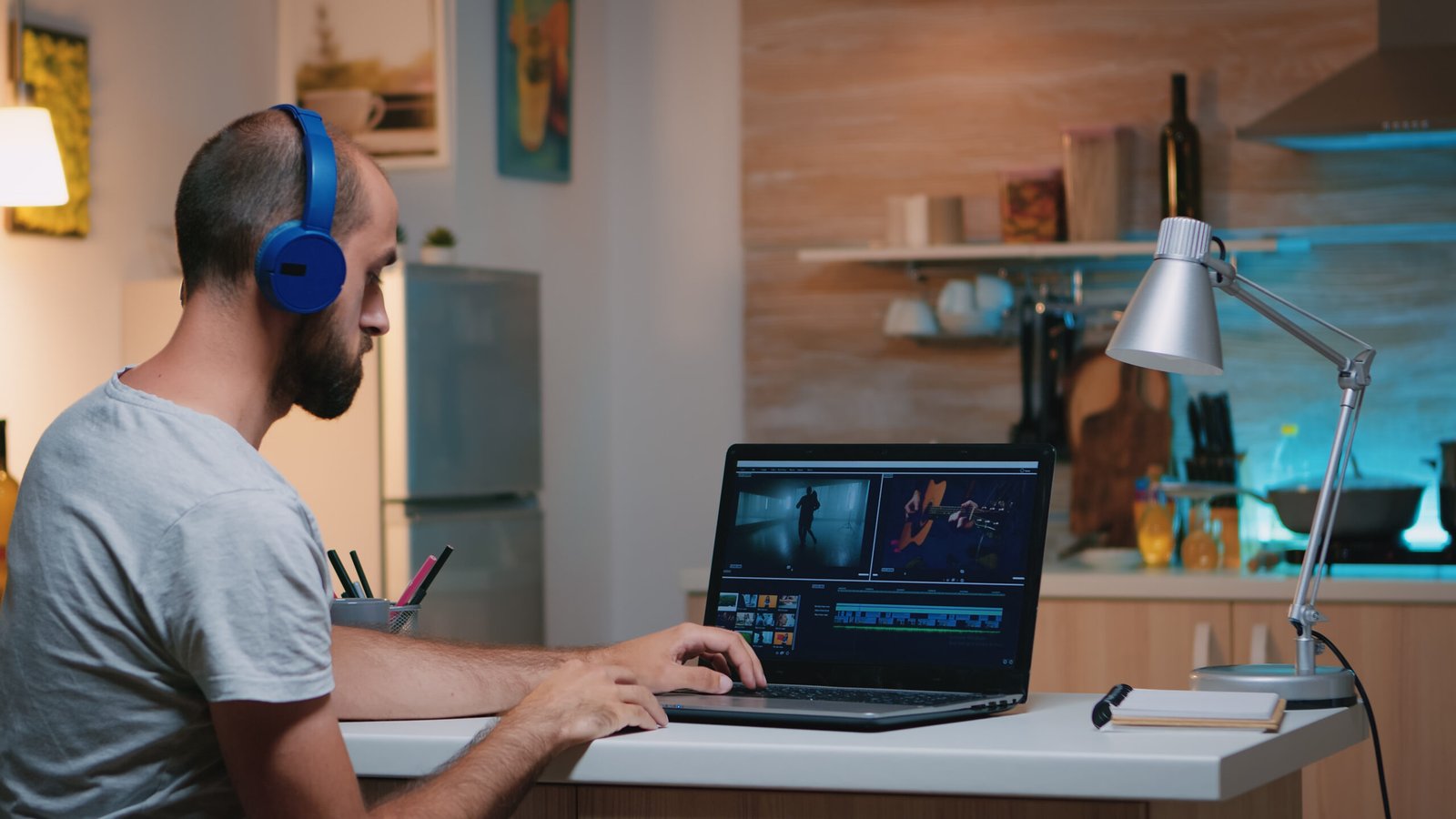
Testing at the end is a habit that transfers to every kind of quality control, not just sync. Exports hide their flaws at the start because the start is where you were paying attention. The end is where fatigue, drift, and accumulated errors live. When you check a master, watch the last thirty seconds first. If audio out of sync exists anywhere, it will be there. Daniel now checks every delivery this way, end first, and he catches things his old start-first habit missed for years. It is a small inversion with an outsized payoff.
The couple never knew any of this happened, which is the ideal outcome. They got their film a week late with an apology and a small discount, and they referred two friends that summer. Daniel now runs every phone clip through HandBrake before it touches a project, a habit that costs him ten minutes per shoot and has prevented every recurrence. His story is illustrative, but the pattern is one I have watched across years of editing forums: the weekend of wrong theories, the eleven-minute fix, and then the permanent habit. The habit is the real deliverable. The fixed wedding was just the tuition.
The permanent habit is the part I want you to copy, not the eleven minutes. Daniel converts phone footage before it enters a project, every time, without deciding each time. Habits beat decisions because decisions get skipped when you are busy, and you are always busiest right before the footage that needs converting. Build the conversion into your ingest ritual: cards in, footage copied, HandBrake queue started, coffee made. By the time the coffee is done, the footage is honest. Future-you, the one who will never again lose a weekend to drifting vows, says thanks.
The fix that actually holds
Daniel’s eleven minutes generalise into a workflow, and it’s worth writing down because sync problems return in different disguises. Follow it in order. Each step eliminates one cause, so by the end there is nowhere left for the problem to hide. This is the checklist version of the whole article, the part to bookmark.
Print it, screenshot it, tattoo it on the inside of your eyelids, whatever works. The value of a written workflow is that it removes decision-making from moments of panic, and sync problems always arrive in moments of panic, usually the night before delivery. When the audio goes out of sync at 11 pm, you do not want to think. You want step one. The checklist has seven steps, in order, and it has never failed anyone who followed it instead of skimming. Bookmark the article if you must, but the checklist is the part that does the work.
A note on order, because it matters more than it looks. Convert the footage before you edit, not after. Check playback traps before you blame the file. Test at the end of the timeline, not the beginning. The sequence is the fix as much as any individual step, and skipping ahead is how people end up nudging audio for three hours when a ten-minute conversion would have settled it.
Order matters because each step assumes the previous one. Converting after editing bakes the drift into your cuts. Nudging before diagnosing treats every case as offset. Testing at the beginning misses drift by design. The checklist is ordered so that each step’s output is the next step’s input: clean playback test, then diagnosis, then conversion, then alignment, then verification. Skip around, and you will do the right things in the wrong order, which is a special kind of frustration. When you find audio out of sync and the clock is ticking, resist the urge to improvise. The order is the fix.
The sync-proof workflow
- Reproduce the problem on the simplest setup: wired headphones, plain player, no Bluetooth, no TV processing.
- Decide offset or drift: identical delay throughout means offset; worsening over time means drift.
- If drift, convert the source footage to a constant frame rate in HandBrake before editing, Same as Source rate.
- Match sample rates across the project: every audio clip at the same rate, usually 48kHz for video.
- Fix offset with one nudge: shift the whole audio track once by the measured delay, then stop touching it.
- Scrub to the end of the timeline and check sync there, where drift always shows first.
- Export, then verify the export on a different device before you call it done.
When a tiny delay is fine
Here is the part nobody tells you, and it will save you hours. Human perception has a tolerance band for sync error, and small delays inside it are literally invisible. Research on audio-visual sync puts the noticeable threshold at roughly a few dozen milliseconds; a delay under that simply does not register, no matter how carefully you watch. If you have measured your offset at twenty or thirty milliseconds, and you are still chasing it, stop. You are polishing something no viewer can see, and every additional render risks introducing a real problem while fixing an imaginary one.
There is a practical way to use the tolerance band: measure before you fix. Most editors show audio delay in milliseconds when you nudge a clip, so nudge until the lips match and read the number. Under about 40 milliseconds, close the project and go outside. Between 40 and 120, one nudge fixes it. Over that, or as time goes on, work the checklist. Numbers beat feelings here. Feelings say it looks off. Numbers say it is 25 milliseconds and therefore invisible. When audio seems out of sync, let the millisecond reading vote before your anxiety does.
This tolerance also explains why short-form video marketing is so forgiving of sync issues. A fifteen-second clip watched on a phone, usually with half attention, hides sins that a five-minute film on a laptop exposes. Instagram Reels hooks win or lose in the first second, and clean sync in that second matters more than perfect sync in the fifteenth. The longer the video and the bigger the screen, the stricter you need to be. Match your effort to the format the way you match it to the stakes. Daniel’s wedding film needed the full workflow. Your Tuesday tip video probably needs the sixty-second diagnosis and nothing more.
Format also decides how much the audience will even notice. A talking-head tip on a phone is the most forgiving format in existence: small picture, casual context, half attention. A wedding film on a laptop is stricter. A cinema screening is merciless. This is not an excuse for sloppy work. It is permission to allocate effort sanely.
Spend the full workflow where the screen is big, and the stakes are high. Spend the sixty-second diagnosis where the screen is small, and the content is disposable. Anyone whose audio stays out of sync on a sales page has no excuse; anyone polishing a throwaway story to the millisecond has no sense of proportion.
There is one more mercy in the system: constant small offsets are the easiest thing in this article to fix, when they need fixing at all. One measurement, one nudge of the whole track, done. No conversion, no re-shoot, no weekend. So if your diagnosis says offset, congratulate yourself. You drew the easy card. Apply the single shift, verify at the end, and spend the afternoon you saved on literally anything else.
One last mercy before we close this section: offset is also the sync problem most likely to be someone else’s fault, which means it is the least worth stressing about. A streaming service’s glitch, a TV’s processing, a Bluetooth delay, none of these are your edit failing. They are the world’s playback chain being imperfect, and the world does not grade you on it.
Save your perfectionism for the file problems, the ones your name is actually on. If the audio out of sync lives only in someone else’s app, let it be their bug report, not your weekend. The file you exported is clean, and audio out of sync elsewhere is not your invoice to pay.
Conclusion
Audio that will not stay in sync feels like a curse, but it is really just a small set of causes wearing similar masks. Work out whether you have offset or drift, and whether the file or the playback is guilty, and the fix usually announces itself. Convert variable frame rate footage before you edit. Suspect Bluetooth before you suspect your export. Nudge once for offset, never slice for drift. Test at the end, where the truth lives. That is the whole discipline, and it fits on an index card.
Tape the index card to your monitor: offset or drift, file or playback, convert before editing, nudge once, test at the end. Five lines that replace ninety percent of sync troubleshooting ever posted online. The remaining ten percent is exotic stuff, faulty hardware clocks, genuinely corrupt files, and you will know you are there because the checklist will have eliminated everything else. Most people never reach the exotic ten percent. They live in the ninety, re-exporting hopefully, and this article just moved you out. The next time audio drifts out of sync in your work, you will feel something unfamiliar: calm.
Run the sixty-second diagnosis on your next problem clip before you change anything, and notice how quickly the panic deflates once the problem has a name. Most sync issues are solved at the diagnosis stage; the fix is just paperwork. And if video is becoming a serious channel for your business, and you want the whole pipeline thought through from capture to delivery, our digital marketing services cover exactly that kind of work.
FAQs
Why does my audio go out of sync only on longer videos?
Because you almost certainly have drift, not offset, and drift accumulates with time. The classic cause is variable frame rate phone footage: the video clock wobbles while the audio clock keeps perfect time, so the gap grows minute by minute. Short clips end before the gap becomes visible, which is why the problem seems length-dependent. Convert the source footage to a constant frame rate before editing and the length dependence vanishes with it.
Can Bluetooth headphones cause lip-sync problems?
Yes, and it is one of the most common fake sync problems. Bluetooth adds latency to the audio path while the picture plays on time, which looks exactly like a constant offset: lips move, voice follows late, consistently. The file is innocent. Test with wired headphones; if the problem vanishes, there was never anything wrong with your video. Do not re-edit or re-export in response to a Bluetooth delay.
Will converting to constant frame rate reduce quality?
Not in any way you will notice, provided you convert sensibly. Use Same as Source rate in HandBrake, so the conversion stays like-for-like, and keep the quality setting high. The conversion re-times frames; it does not throw away picture information the way heavy compression does. What it costs you is one extra encode and a few minutes. What it buys you is footage your editor can actually keep in sync, which is worth far more than the theoretical quality difference.
Why is the sync fine in my editor but wrong after export?
Two usual suspects. First, a sample rate mismatch: if the project plays audio at 48kHz, but a clip is 44.1kHz, or the export resamples badly, the audio drifts after export while the timeline looked fine. Second, export frame rate settings that differ from the timeline can reintroduce timing wobble. Check that the export matches the project's frame rate and that all audio shares one sample rate, then re-export. If the editor preview was fine, the timeline is innocent; interrogate the export settings.
Is it my phone's fault that the audio drifts?
Partly, but not in the way people mean. Your phone records variable frame rate to save battery and storage, which is a sensible engineering choice for a phone. The drift appears when editing software misreads that stretchy timing as rigid. So the phone is not broken, and the footage is not corrupt; two systems are just keeping time differently. Convert to constant frame rate before editing and the phone's sensible choice stops being your problem.